Nov 18, 2026 · 0 min read
LinearGitLabDevOpsDeveloper ProductivityWorkflow AutomationCI/CDWebhooksProject Management
How I Made My Issue Tracker Update Itself with Linear and GitLab
Merged code, stale tickets. I connected Linear and GitLab so issues move through the board on their own, from first merge request to production deploy. Here's how the integration works under the hood, how to set it up, how to design a status flow around real deployments, and the mistakes I made along the way.
 Rajan KarkiOct 1, 2026 · 7 min read
Every engineering team I've worked with has the same quiet problem. The code tells one story and the issue tracker tells another. A merge request gets merged on Tuesday, but the ticket still says "In Progress" on Friday, because nobody remembered to drag it across the board. Multiply that by a team of ten and your project board becomes a polite fiction.
I recently set up an integration between Linear and GitLab to fix exactly that. Along the way I hit a few walls, learned how the pieces actually talk to each other, and ended up with a workflow where the issue tracker updates itself. This post is everything I wish I'd known before I started: what each tool does, how the integration works under the hood, how to set it up, how to design a status flow that matches real deployments, and how to test it without touching production.
A quick background: Linear and GitLab
What Linear is
Linear is an issue tracker and project management tool built mainly for software teams. If you've used Jira, the core idea is familiar: issues, projects, cycles (sprints), and a board that shows work moving through statuses like Backlog, Todo, In Progress, In Review and Done.
What makes Linear popular is speed and opinionated simplicity. It's keyboard-first, fast to navigate, and designed so that tracking work feels lightweight rather than like paperwork. Each issue gets a short identifier made from a team key and a number, like ENG-123. That identifier turns out to be the key to the whole integration.
Typical uses of Linear include:
- Tracking bugs and feature requests
- Planning sprints (Linear calls them cycles)
- Grouping work into projects with milestones
- Giving managers and product owners a live view of progress
What GitLab is
GitLab is a complete DevOps platform. At its core it hosts Git repositories, but it also covers code review through merge requests (MRs), CI/CD pipelines, container registries, security scanning and more. Many teams run their whole delivery process inside it: write code, open an MR, get it reviewed, let the pipeline test and deploy it.
GitLab has its own issue tracker too, but plenty of teams prefer a dedicated tool like Linear for planning and use GitLab for everything code-related. That split is common, and it's exactly where the gap appears.
Why connect them?
When planning lives in one tool and code lives in another, someone has to manually keep them in sync. In practice, that someone is every developer, many times a day, and they forget. Connecting the two tools removes that chore. With the integration in place:
- Traceability is automatic. Every issue shows the MRs that implement it, and every MR links back to its issue.
- Status stays honest. Issues move through the board based on what actually happens in GitLab.
- Context travels with the code. Reviewers see the issue description right on the MR, without hunting for it.
- Managers stop asking "is this done?" The board answers for them.
How the integration actually works
Before touching any settings, it helped me to understand the mechanics. There are three moving parts.
1. An access token (Linear talks to GitLab). Linear uses a GitLab personal access token to read merge request details and post comments back on MRs. Those comments are called linkbacks.
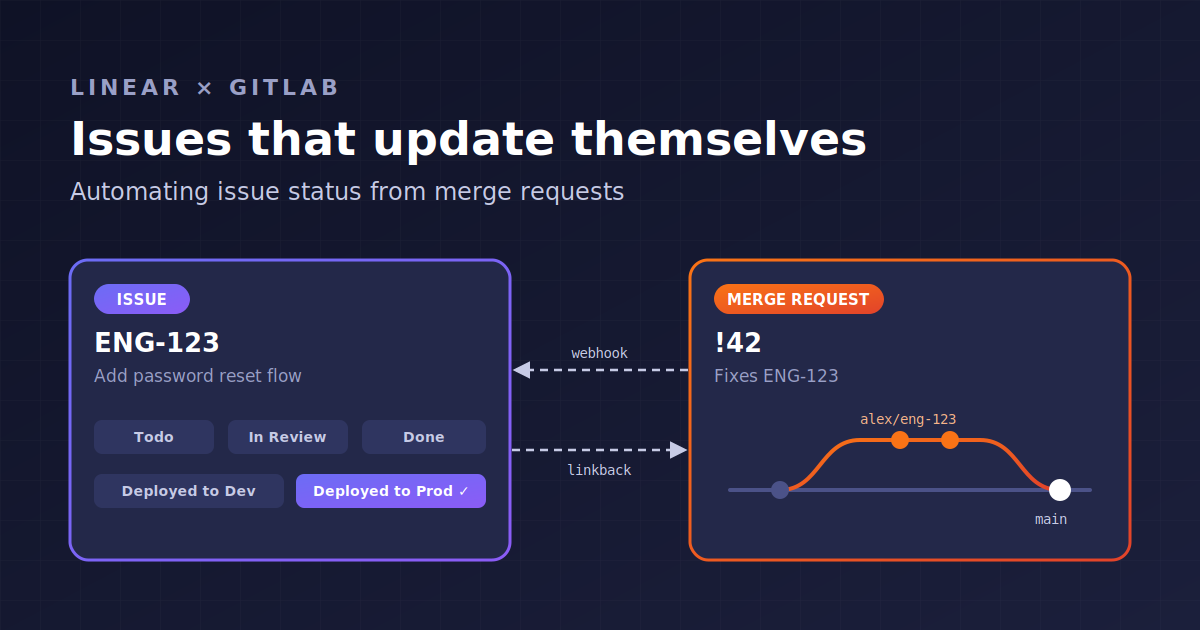
2. A webhook (GitLab talks to Linear). A webhook is GitLab's way of sending an HTTP request to another service whenever something happens: an MR is opened, updated, merged, or a pipeline finishes. Linear gives you a unique webhook URL, and GitLab sends events to it.
3. Issue identifiers (how Linear knows which issue). When an event arrives, Linear looks for issue IDs like ENG-123 in the branch name, the MR title, or the MR description. If it finds one, it links the MR to that issue and applies your status rules.
The flow looks like this:
flowchart LR
  A[Developer opens or updates an MR in GitLab] --> B[GitLab webhook sends event]
  B --> C[Linear finds the issue ID in branch, title or description]
  C --> D[MR attached to the issue]
  C --> E[Status updated by workflow rules]
  D --> F[Linkback comment posted on the MR]
The biggest lesson from my setup is hiding in that diagram. The token and the webhook are two separate connections running in opposite directions. Linear's settings page happily showed my integration as "Connected" with a valid token, and yet nothing was linking. The token only lets Linear talk to GitLab. Without the webhook, GitLab never tells Linear anything happened. More on that in the troubleshooting section.
Setting it up step by step
Step 1: Create a GitLab access token
1. In GitLab, go to User Settings → Access Tokens.
2. Create a token with the api scope. The read-only scope isn't enough, because Linear needs to post linkback comments.
3. Set a sensible expiry date and copy the token. GitLab only shows it once.
A small tip: Linear posts its comments under the name of whoever owns the token. Creating a dedicated bot user for this keeps your MRs from looking like you personally commented on every single one.
Step 2: Enable the GitLab integration in Linear
1. In Linear, open Settings → Integrations → GitLab and click Enable.
2. Paste the token. If you self-host GitLab, enter your instance URL.
3. After connecting, Linear generates a webhook URL. Copy it; you need it in the next step.
4. Choose a branch format. I use username/identifier, which produces branch names like alex/eng-123.
5. Turn on linkbacks for private repositories so Linear comments on your MRs.
Step 3: Add the webhook in GitLab
1. Go to your GitLab group (or a single project) → Settings → Webhooks.
2. Paste the Linear webhook URL.
3. Enable these triggers: Push events, Comments, Merge request events and Pipeline events.
4. Keep SSL verification on and save.
5. Click Test → Merge request events and confirm you get HTTP 200.
One design choice worth thinking about: a group-level webhook covers every project in the group and its subgroups, so you set it up once and new repositories are covered automatically. Just don't add project-level webhooks on top of it. If you do, Linear receives every event twice.
Step 4: Use the identifier in your daily workflow
There are three ways to link an MR to an issue, and they all work:
| Method | Example | Notes |
| --- | --- | --- |
| Branch name | alex/eng-123 | Easiest. In Linear, Cmd + Shift + . copies the branch name for the current issue |
| MR title | ENG-123 Add password reset | Handy when the branch was named something else |
| MR description | Fixes ENG-123 | Can reference several issues at once |
The wording in the description matters. Closing words like Fixes or Closes tell Linear the MR completes the issue. Contributing words like Part of or Related to link the MR without closing the issue, which is perfect when one feature is split across several MRs.
Designing a status flow that matches reality
The default automation is reasonable: an MR opening moves the issue to In Progress, a review request moves it to In Review, and merging moves it to Done. But "Done" can mean very different things. Is it done when the code is merged? When it reaches staging? When customers can use it?
For a team with separate development and production environments, I found it far more useful to make the board reflect *where the code is deployed* rather than just whether it was merged. Here's the flow I designed:
| Developer action | Issue status |
| --- | --- |
| Opens a merge request | Done (development work finished) |
| MR merged into develop | Deployed to Dev |
| MR merged into main | Deployed to Prod |
| Release tag created | Deployed to Prod |
Linear supports this through branch-specific rules: you can set a different status for the merge event depending on the target branch. A few things I learned while configuring it:
Use regex to cover different branch names. Not every repository names its branches the same way. One project might use develop and main while another uses dev and prod. A pattern like ^(develop|dev)$ for the dev rule and ^(main|prod)$ for the production rule handles both without separate configuration.
Watch out for rules that move issues backward. If opening an MR sets the issue to Done, but requesting a review sets it to In Review, the issue jumps backward the moment someone adds a reviewer. When you change the meaning of a status, check every other event and set the ones that shouldn't change anything to "No action."
Decide what drafts mean. Linear has a separate rule for draft MRs. If you leave it empty, a draft links to the issue but doesn't change its status. That's a reasonable default, because a draft often means "I'm still experimenting."
Going further: updating status from release tags
Many teams don't deploy to production on merge. They deploy when someone creates a release tag like v2.4.0. The catch is that Linear's GitLab integration reacts to merge request events, not tag events, so a branch rule can't handle this.
The solution I used is a small CI job that runs only on release tags. It finds every issue ID mentioned in the commits since the previous release, then calls Linear's GraphQL API to move each one to Deployed to Prod. Merge commits in GitLab include the source branch name, so if developers use Linear's branch names, the issue IDs are already in the history.
Here's a simplified version of the job:
linear:deployed-to-prod:
  stage: .post
  image: alpine:3.20
  rules:
    - if: '$CI_COMMIT_TAG =~ /^v?[0-9]+\.[0-9]+\.[0-9]+$/'
  variables:
    GIT_DEPTH: "0"
    TEAM_KEY: "ENG"
    PROD_STATE_ID: "<your 'Deployed to Prod' state ID>"
    RELEASE_TAG_REGEX: '^v?[0-9]+\.[0-9]+\.[0-9]+$'
  allow_failure: true
  script:
    - apk add --no-cache git curl jq
    - |
      PREV_TAG=$(git tag --merged "${CI_COMMIT_TAG}^" --sort=-creatordate \
        | grep -E "$RELEASE_TAG_REGEX" | head -n 1)
      [ -z "$PREV_TAG" ] && echo "No previous release, skipping" && exit 0

      IDS=$(git log --format='%s%n%b' "$PREV_TAG..$CI_COMMIT_TAG" \
        | grep -oiE "${TEAM_KEY}-[0-9]+" | tr a-z A-Z | sort -u)

      for ID in $IDS; do
        curl -s https://api.linear.app/graphql \
          -H "Content-Type: application/json" \
          -H "Authorization: $LINEAR_API_KEY" \
          -d "$(jq -n --arg id "$ID" --arg s "$PROD_STATE_ID" \
            '{query: "mutation($id: String!, $s: String!) { issueUpdate(id: $id, input: {stateId: $s}) { success } }", variables: {id: $id, s: $s}}')"
      done
A few design decisions are worth explaining, because they're the kind of thing that only becomes obvious after you think about failure cases:
- The regex
^v?[0-9]+\.[0-9]+\.[0-9]+$matches release tags likev1.2.3or1.2.3, but ignores pre-releases likev1.2.3-rc.1. Release candidates usually aren't production deployments. - The same regex finds the previous release. If you just took the previous tag of any kind, a stray
test-tagbetween releases would cut the range short and miss issues. - It skips the very first release tag. Without a previous release to compare against, the range would be the entire Git history, and the job would mark every issue ever mentioned as deployed.
allow_failure: trueand the.poststage mean this job runs after everything else and can never block a deployment. Automation around your release process should never be able to break your release process.- The API key lives in a masked CI/CD variable, never in the repository.
Testing the integration without touching production
This is the part I'm most glad I took seriously. An integration that changes issue statuses and reacts to merges deserves a real end-to-end test, but you don't want test merges landing on branches that deploy.
My approach:
1. Pick a safe repository. Use one where merging doesn't trigger a deployment, or create a throwaway target branch (for example integration-test-base) and point all test MRs at it.
2. Create a dedicated test issue in Linear and copy its branch name.
3. Walk the full lifecycle and check Linear after every single step:
| Step | Action in GitLab | What to verify in Linear |
| --- | --- | --- |
| 1 | Push a branch with the issue's branch name | Nothing yet (branches alone don't trigger linking) |
| 2 | Open a draft MR | MR attached; linkback comment appears on the MR |
| 3 | Mark the MR ready | Status changes per your "MR open" rule |
| 4 | Request a review | Status changes per your review rule |
| 5 | Merge | Status changes per your merge rule for that branch |
4. Test each linking method separately. Use a branch with an unrelated name, then try the ID in the title, then a closing word in the description. Otherwise the branch name does all the linking and you never know whether the other methods work.
5. Clean up. Remove the test file, delete the branches, and cancel the test issues.
If you're testing on a repository with "pipelines must succeed" enabled and you don't want CI running, adding [skip ci] to commit messages prevents pipelines. Just know that GitLab may then refuse the merge, because a skipped pipeline doesn't count as a passing one. That's a good reason to have a genuinely safe test repository.
Troubleshooting: the mistakes I made so you don't have to
"Connected" doesn't mean working. My first several tests did nothing at all. Linear said the integration was connected, the token was valid, and the issue IDs were in every branch, title and description. The problem was that no webhook existed in GitLab. The token and the webhook are two separate connections, and you need both. If MRs aren't linking, check Settings → Webhooks before anything else.
Old events don't replay. After I added the webhook, my existing test MRs still weren't linked. GitLab doesn't resend past events, so an MR opened before the webhook existed stays unlinked until something new happens to it. Editing the title or description is enough to send a fresh event.
Use the webhook's "Recent events" log. Every GitLab webhook keeps a history of delivery attempts with response codes. A 200 means Linear accepted the event. A 401, 403 or 404 usually means the URL is wrong or out of date. No entry at all means GitLab never sent it, often because the right trigger isn't checked.
Duplicate comments mean duplicate webhooks. If linkback comments appear twice, you probably have both a group webhook and a project webhook pointing at Linear.
Commit messages and comments don't link issues. Linking comes from branch names, MR titles and MR descriptions. Mentioning an issue ID in a commit message or an MR comment won't attach it.
Tokens expire. Personal access tokens have expiry dates. Put a reminder in your calendar, or the integration will quietly stop working one day.
What I took away from this
The technical setup took less than an hour once I understood it. The valuable part was everything around it: understanding that an integration is really two connections in opposite directions, designing statuses that describe deployment reality rather than just code review, thinking through failure cases before automating anything near a release, and testing in a way that couldn't possibly affect production.
The result is a board that tells the truth without anyone maintaining it. Developers just work in GitLab the way they already do, and the issue tracker follows along. That's what good tooling should feel like: invisible until you need it, and trustworthy when you look.